-
Clicking on a map icon will begin tracking that flight. Depending on your desired settings (see below), the camera will either center on that flight's position, or enter chase mode, with dynamic zoom, pan and pitch.
An information panel will display relevant details about that flight. The amount of information displayed will depend on the screen size of the device you are using. For example: a phone screen will likely only show minimal live data so as not to clog up the screen.
Yellow: Indicates your flight.
Orange: Indicates a flight of a user you follow.
Green: Indicates that the flight is being tracked.
White: Default marker icon.
Note: When the map view is pitched, each marker will also project its shadow at the latitude/longitude coordinates of the aircraft. The marker itself is elevated at the correct altitude. All lines (flightplan, path) are draped on the map's surface. If the map is zoomed out sufficiently, the shadows are hidden again so as to not confuse the interface.
-
Clicking the chevrons on the left of your screen will display a list of all active flights.
Clicking a flight will select the user and display their flightplan (if available).
If your flight is found, it'll be placed at the top (green). If a user you follow is found, they'll be orange color.
If you navigate to the map via a share link, the person who's link you followed will be color coded, with *Aircraft Type* characters surrounding their aircraft text.
-
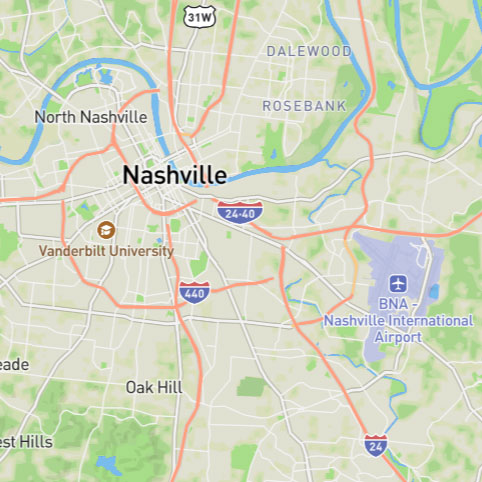
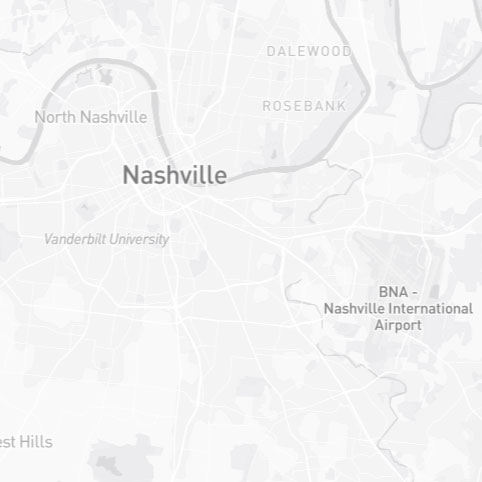
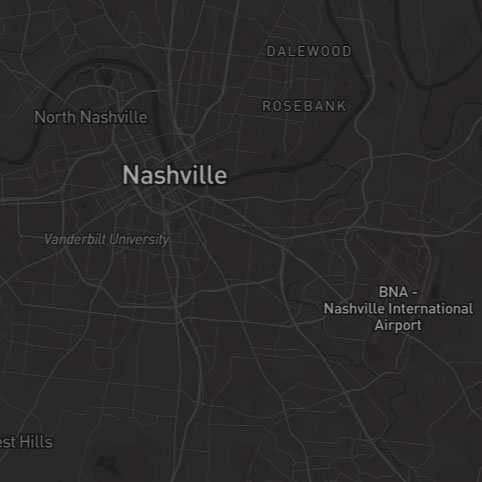
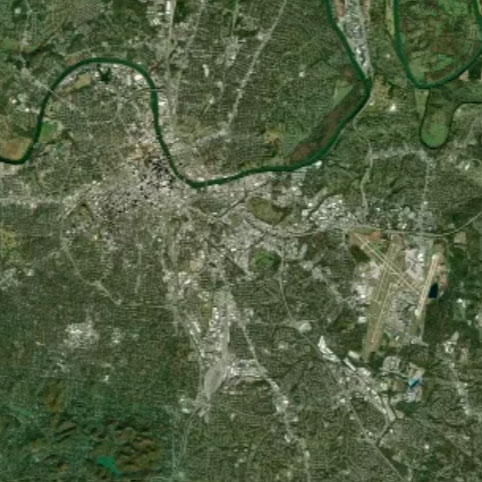
Use the zoom controls (+/- buttons) to zoom in or out on the map.
Adjust the bearing by clicking and dragging the map or using the compass icon to rotate.
Tip: On mobile/touch devices, use two fingers to rotate and pitch, punch to zoom.